MEGASAMPLER BONUS 03: Multiple Menus
In this tutorial, we will break down how to create a robust menu system for the Sega Genesis using SGDK. We'll use the MEGAPONG project as our case study; however, the menu logic is relatively applicable to other MEGA-PROJECTS [MEGARUNNER, MEGALAGA, etc.].
1. The Core Concept: The State Machine
A game is rarely just one big loop. It usually has distinct "modes": a Title Screen, an Options Menu, the Gameplay itself, and a Game Over screen.
In megapong.c, this is handled by a simple enum (enumeration) and a switch statement. This is called a Finite State Machine. We’ve covered enumeration and switch statements in previous lessons if you need a refresher.
Step A: Define Our States
First, we list every possible "screen" the game can be in:
Step B: The Main Loop
In our main() (or runMegapong in this specific file), the game enters a loop that checks the currentState and launches the appropriate function. When that function finishes, it returns the next state the game should go to.
Why this is good: It keeps our code isolated. The "Gameplay" code doesn't need to know how the "Options" menu works. It just needs to know when to start and stop.
2. Drawing the Menu (Visual Feedback)
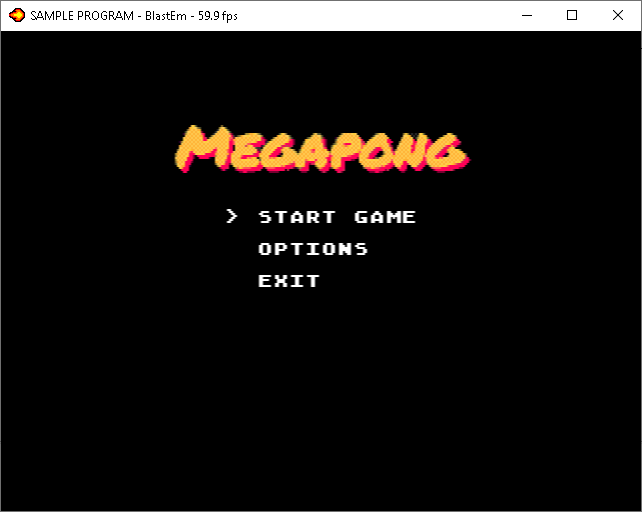
In megapong_menu(), we need to show the player what they are selecting. We use a simple integer variable selection to track where the cursor is.
- 0 = Start Game
- 1 = Options
- 2 = Exit
The "Dirty" Rendering Trick
On the Sega Genesis, writing text to the screen (VRAM) is relatively slow compared to modern PCs. You don't want to redraw the entire menu text every single frame (60 times a second).
Instead, we only redraw text when something changes.
- VDP_drawText: The standard SGDK function to draw strings to a plane.
- The Ternary Operator (? :): This is a clean way to toggle the arrow. If
selection == 0is true, it draws "> START". If false, it draws " START".
3. Handling Inputs (The "Pressed" Check)
One of the biggest mistakes beginners make is checking if a button is held down rather than pressed once.
- Held (Current State): Good for moving a paddle. If you hold UP, the paddle keeps moving.
- Pressed (Change State): Good for menus. If you hold UP, the cursor should only move once, not fly to the top instantly.
In megapong.c, we calculate pressed manually:
4. The Options Menu: Modifying Global Settings
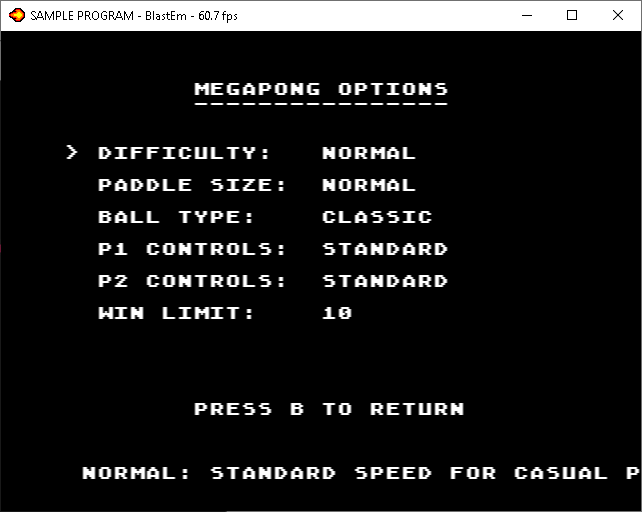
The megapong_options() function shows how to change game variables. Because settings is a global struct, changes made here persist when we switch to STATE_PLAY.
Cycling Through Enums
The code uses a clever math trick to cycle through options (like Difficulty) without using a dozen if/else statements.
The Goal: Cycle through SLOW (0), NORMAL (1), FAST (2), HYPER (3).
- + dir: Moves the value up or down.
- + 4: Ensures the number never becomes negative (which breaks the modulo operator in C).
- % 4: Wraps the value. If you go above 3, it wraps back to 0.
Dynamic Flavor Text
The menu also features scrolling text that explains what each option does. This is handled by a switch statement that updates a string pointer flavor based on the currently selected row.
Menu Results
Tutorial Summary
- Use Enums: Give our game states (Menu, Play, Options) readable names.
- Separate Logic: Keep our input handling separate from our drawing code.
- Detect Presses, Not Holds: Use bitwise logic to detect single button presses for menu navigation.
- Update Only on Change: Don't
VDP_drawTextevery frame. Only draw when the user presses a button.